
Put the department's day on every screen in the building.
Pair any TV or monitor with a six-character code and it shows your live status with nobody signed in: today's burn status, recent calls, fire weather, the shift's work and the department's goals. A lobby screen shows what the public may see, a day room screen shows the crew's own unit and shift, and a new call takes the bay screen over.

The whiteboard in the day room is out of date by noon.
A response-first RMS keeps the data, but nobody signs in to it on the wall. So the station runs on a whiteboard, a printout and whatever someone remembers to say at shift change.
A screen means a signed-in session
Put the RMS on a TV and it sits signed in as somebody, open to whoever walks past, until the session ends and the screen shows a login page.
A screen is paired with a code, signs nobody in and can change nothing. It keeps itself current, and an Administrator revokes it from one list.
The lobby and the bay see the same thing
One dashboard for every wall means either the public sees too much or the crew sees too little.
Each screen says who can see it: a public area, a staff area or crew only. That decides every card it may show, down to which calls a lobby may list.
A dark screen nobody notices
A TV that lost its network shows yesterday's numbers until someone finally looks at it closely.
A screen that stops checking in is marked on the list, and the staff you choose get one email per outage, only in the hours you say the screen should be on.
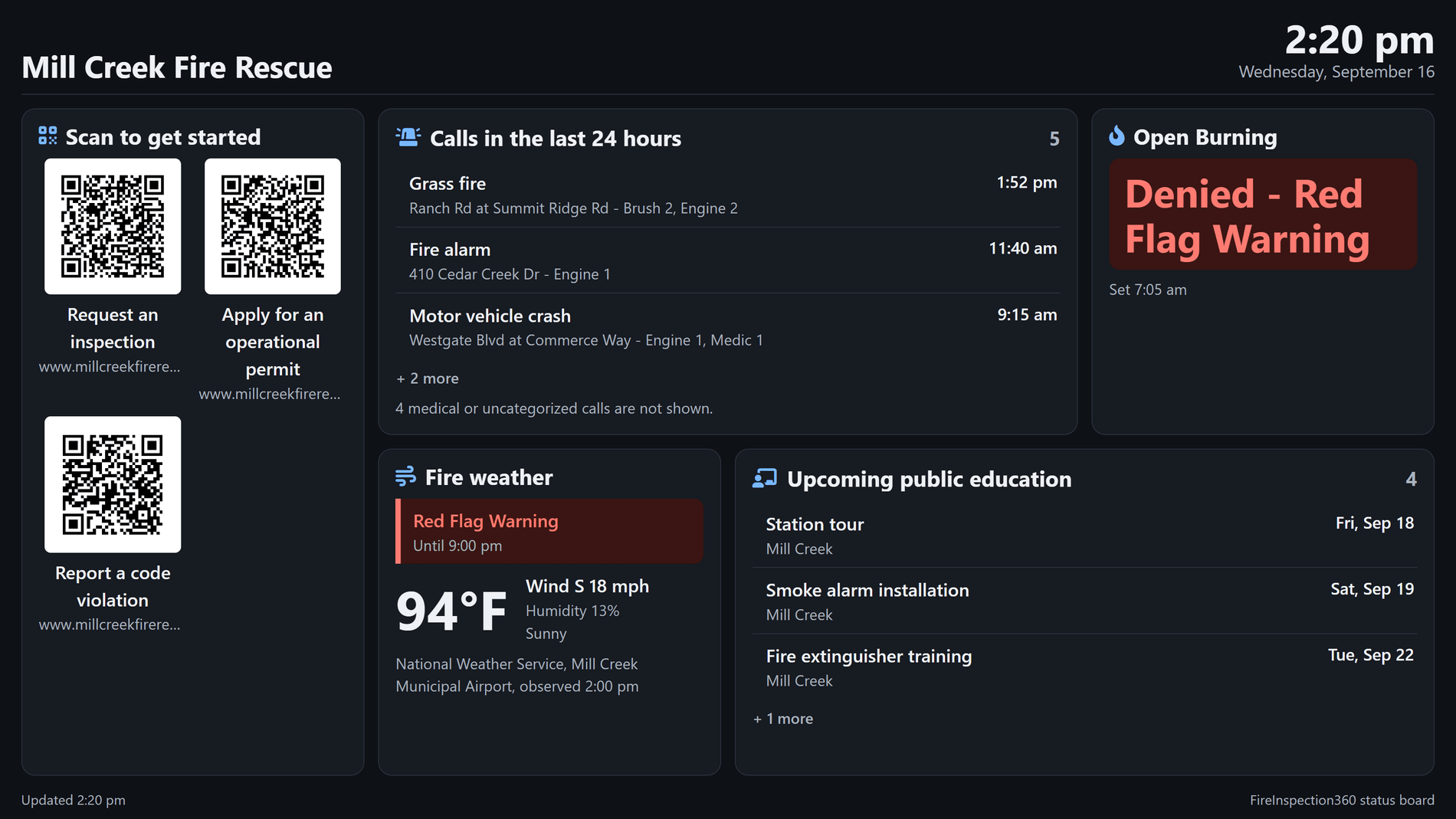
Shown with sample data. Click the image to see the whole page.
A lobby screen shows what the public may see.
A screen marked as a public area shows the cards a visitor may read and nothing about a patient, a staff member's work or an empty building under watch. What it leaves out is counted where it was left out, so nobody mistakes a quiet card for a quiet day.
- Open burning today: whether burning is allowed, as the department last set it, and when.
- Recent calls: the time, type, address and units of each call. On a public screen a medical call, or a call type not yet given a category, is counted and never shown.
- Fire weather: the temperature, wind and humidity from the National Weather Service, with any warning in effect, a Red Flag Warning first.
- Scan to get started: QR codes a visitor scans to request an inspection, apply for a permit or report a violation online, drawn from the same actions as your public homepage, so the screen never offers something your site does not.
- Upcoming public education: the program, the day and the town of each scheduled event.
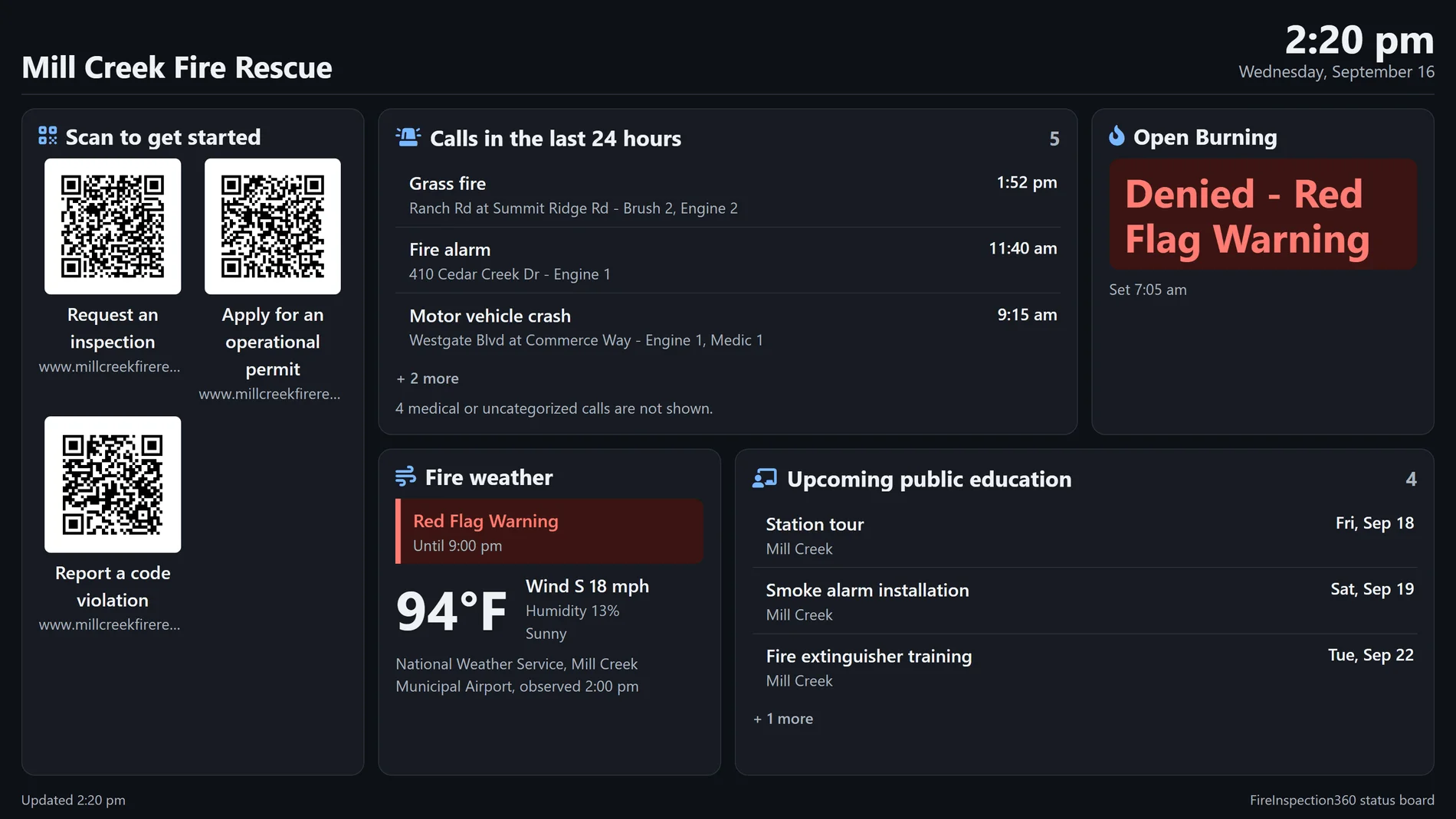
Shown with sample data, on a 16:9 TV.
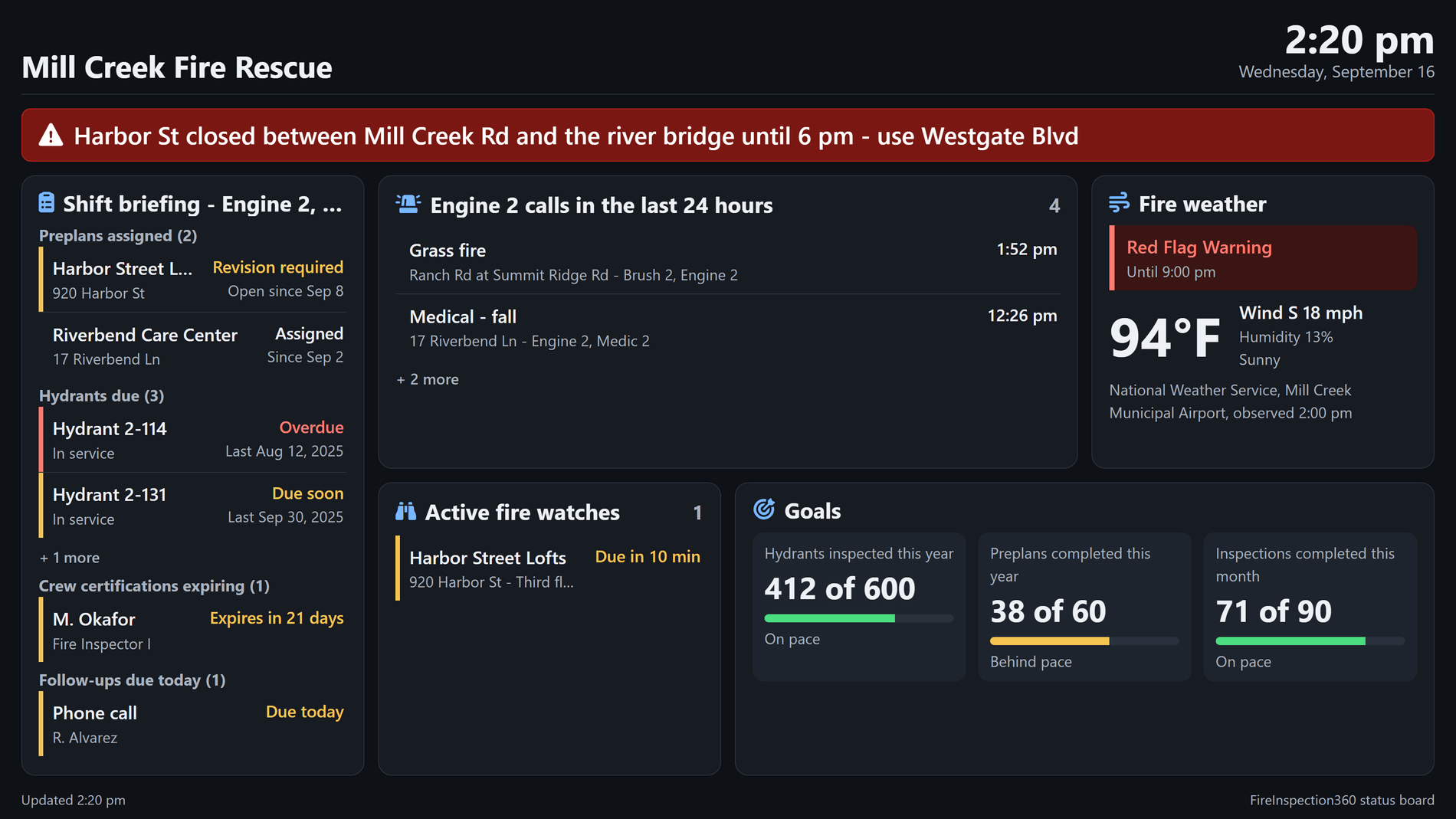
Shown with sample data. Click the image to see the whole page.
The day room shows this shift's work.
A crew screen is set to its station's unit and shift, and its cards read from that. The shift briefing is the work the crew owns today, pulled from the records the department already keeps, with nothing typed onto a whiteboard.
- The shift briefing: the preplans assigned to the unit and shift, the hydrants they have due, crew certifications expired or inside the department's own warning window, and the follow-ups due today.
- The unit's own calls: the calls card can list only the calls that named the screen's unit.
- Active fire watches: every active watch, with when its next round is due and which are overdue.
- Goals: progress toward the department's own targets, such as hydrants inspected this year or inspections this month, counted by the same rules as the analytics pages. No money is ever shown.
- Messages: a road closure or a drill, typed once on the Status Boards page and shown across the top of every screen you choose until the time you set.
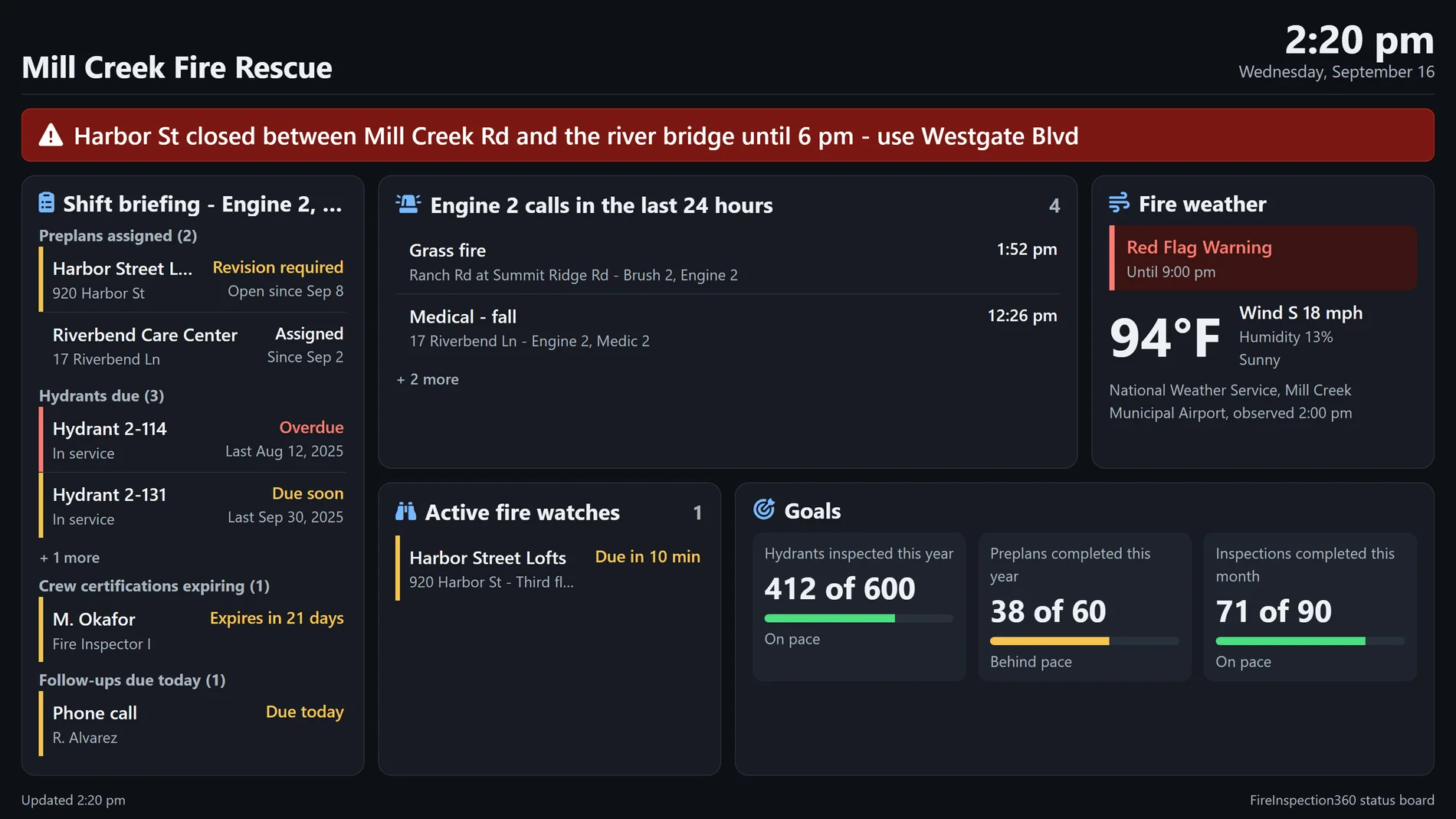
Shown with sample data. The red bar is a message sent from the Status Boards page.
Shown with sample data. Click the image to see the whole page.
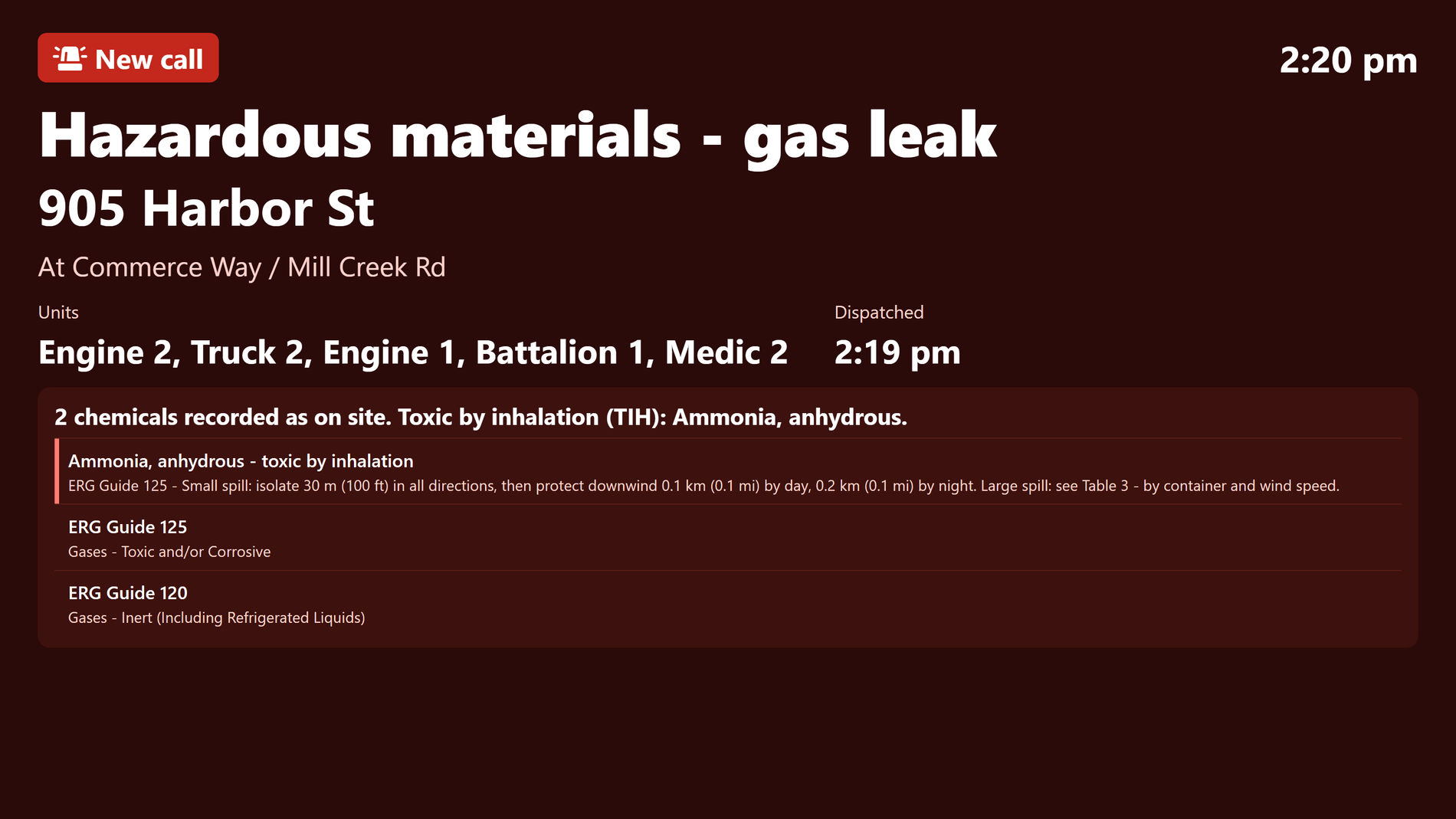
A new call takes the bay screen over.
Switch the takeover on for a crew screen and a new call fills it: the type, the address, the cross streets, the units and when they were dispatched. After the minutes you choose, the board comes back on its own.
- Your unit or every call: take the screen over for any call, or only for a call that names the screen's own unit.
- What is inside: when the call is at a property with chemicals on record, the screen shows the responder summary: what is on site, anything toxic by inhalation with its Emergency Response Guidebook isolation distances, and the guides to read.
- Crew screens only: a lobby or an office screen is never taken over, and a public screen never names a medical call.
- Built to be read across the room: the call is painted in large type in the department's own words, with nothing to click.
Shown with sample data. The chemicals and the distances come from the property's own records and the Emergency Response Guidebook.
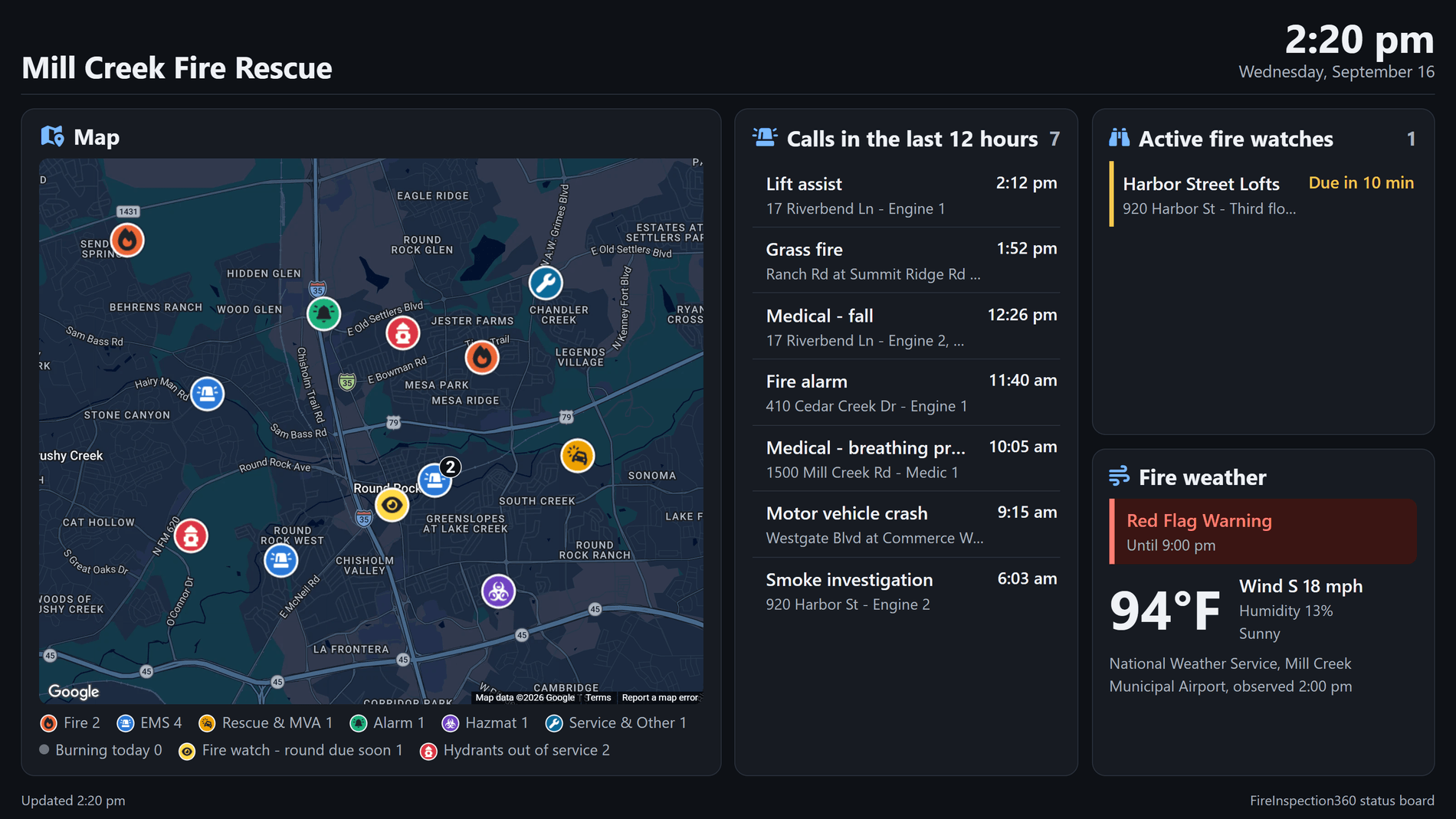
Shown with sample data over Google's map of a real town; every marker is fictitious. Click the image to see it up close.
The whole area on one screen, as it stands now.
For a command or operations room, a large map card shows the department's area with what is happening on it, beside the calls, the fire watches and the weather. It redraws its markers at every refresh and never needs anyone to pan or zoom.
- Calls in the last 24 hours: each marked with the same icon and color as on FI360's map, so fire, EMS, rescue and hazmat calls read apart at a glance.
- Large enough to read across a room: markers are sized for the screen and grow on a large map, calls of one kind at the same spot fold into one marker with their count, and different kinds at one spot are spread apart so none hides another.
- Burning today: the open burning permits active today.
- Fire watches and hydrants out of service: on staff and crew screens only, never on a screen the public can read.
- Your layers, your size: choose which of the four a board shows, and give the map a standard, wide, tall or large space.
- A legend that counts: every kind of marker shown under the map with its icon and how many there are.
An operations room screen with sample data over Google's map of a real town; every marker is fictitious.
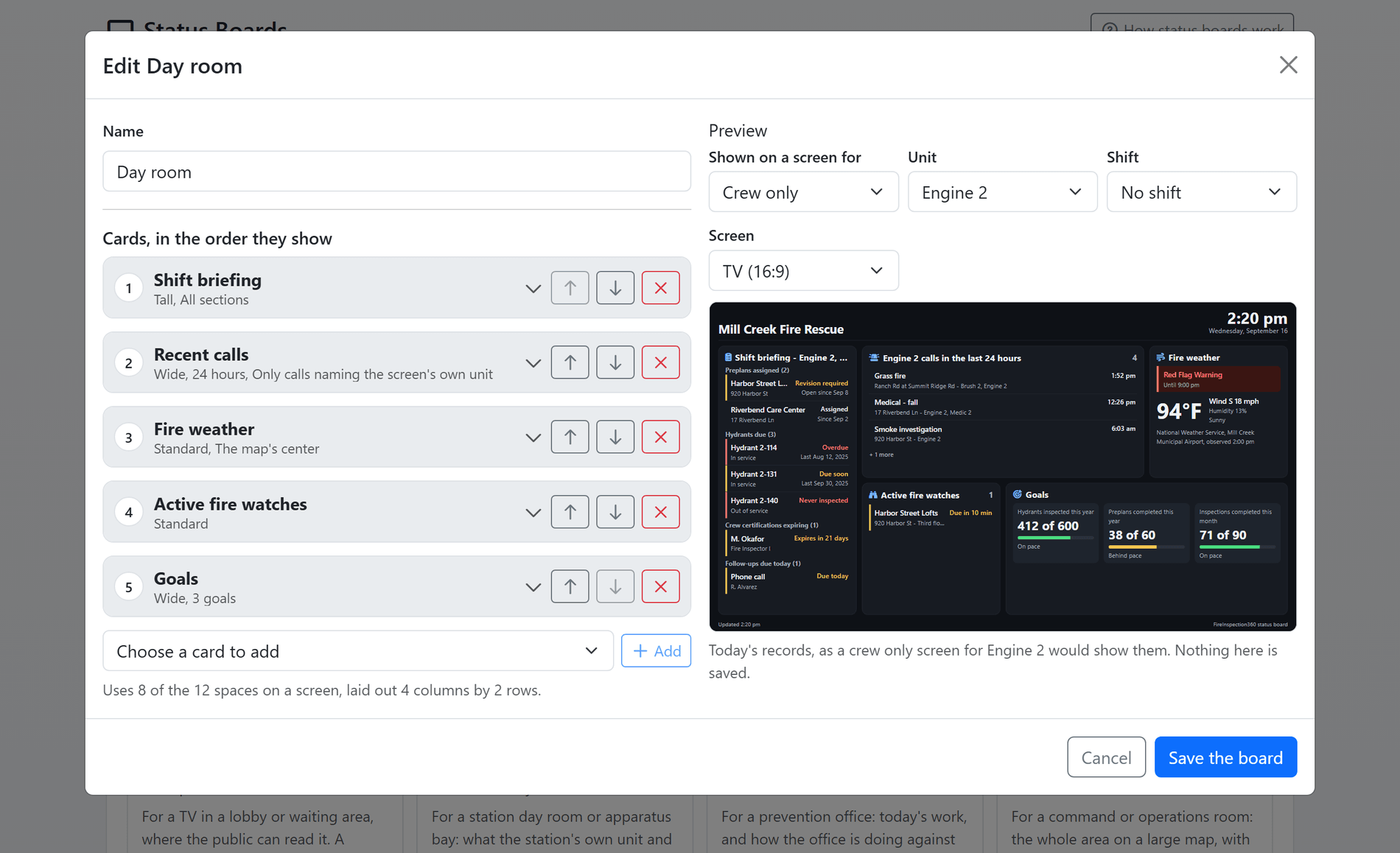
Shown with sample data. Click the image to see the preview up close.
Build a board and see it before any screen does.
A board is a named set of cards, kept apart from the screens so one board can serve every station. The preview draws it from your department's own records, as the screen you choose would show it, and nothing is saved until you save.
- Ten cards: open burning, recent calls, fire watches, today's inspections, the shift briefing, a map of the area, fire weather, QR codes, public education and goals, each with its own options.
- Four sizes: standard, wide, tall or large, laid out by one rule on the screen and in the editor, up to twelve spaces on a TV and two columns on a screen turned on its side.
- Preview for any audience: choose public, staff or crew, a unit and a shift, and the editor names any card that audience would not see.
- What does not fit is said: a crowded card takes rows off and says how many, rather than running past the edge of the screen.
- Example boards: a lobby, a station day room, a prevention office and an operations wall, built from the cards your department offers, ready to start from.
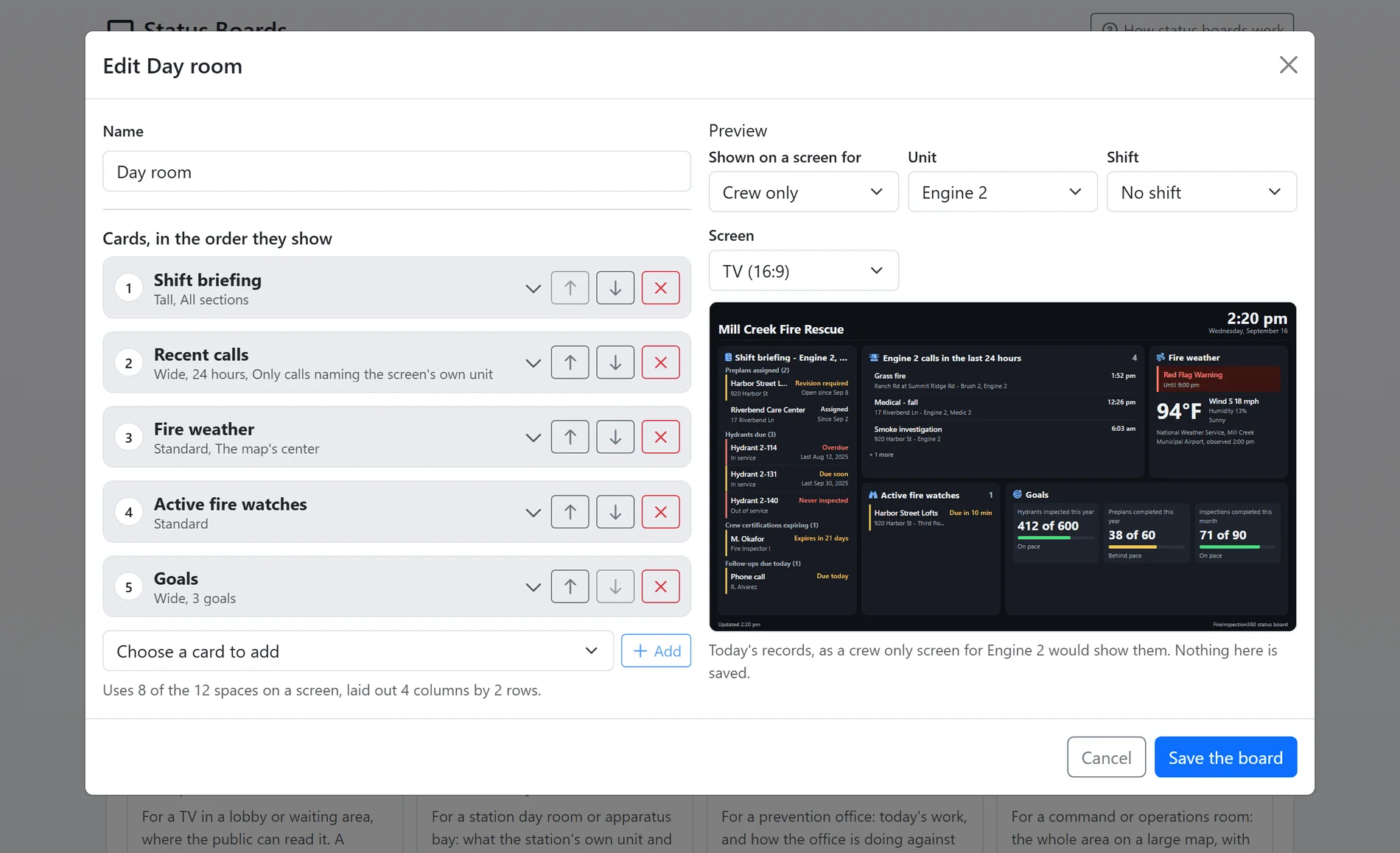
Shown with sample data.
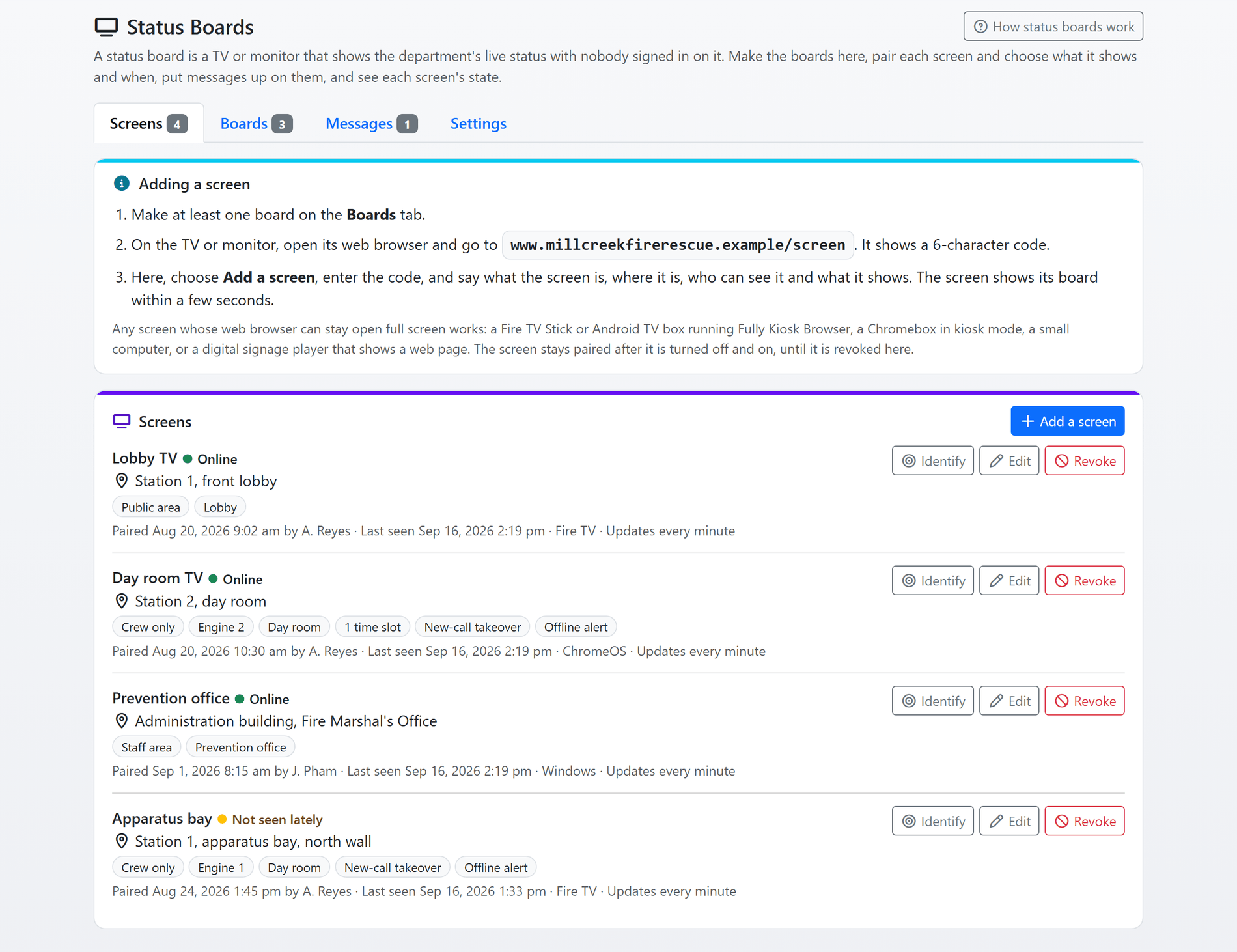
Shown with sample data. Click the image to see the whole page.
Every screen on one list, with its state.
Open the screen's web browser at your site's screen address and it shows a code. Enter the code on the Status Boards page, say what the screen is, where it is and who can see it, and it shows its board within a few seconds. It stays paired through power cuts until you revoke it.
- Any screen with a web browser: a Fire TV Stick or Android TV box running Fully Kiosk Browser, a Chromebox in kiosk mode, a small computer, or a signage player that shows a web page.
- A rotation and time slots: up to six boards in turn, a different set by time of day on the department's clock, and a dim slot for overnight.
- Identify: one click puts a screen's name and place on it for twenty seconds, for finding which TV is which.
- Offline alerts: a screen not seen for the time you set emails the staff you choose, once per outage, only in the hours it should be on.
- It looks after itself: a screen that loses its connection keeps trying, says how old its figures are, and picks up a new release on its own.
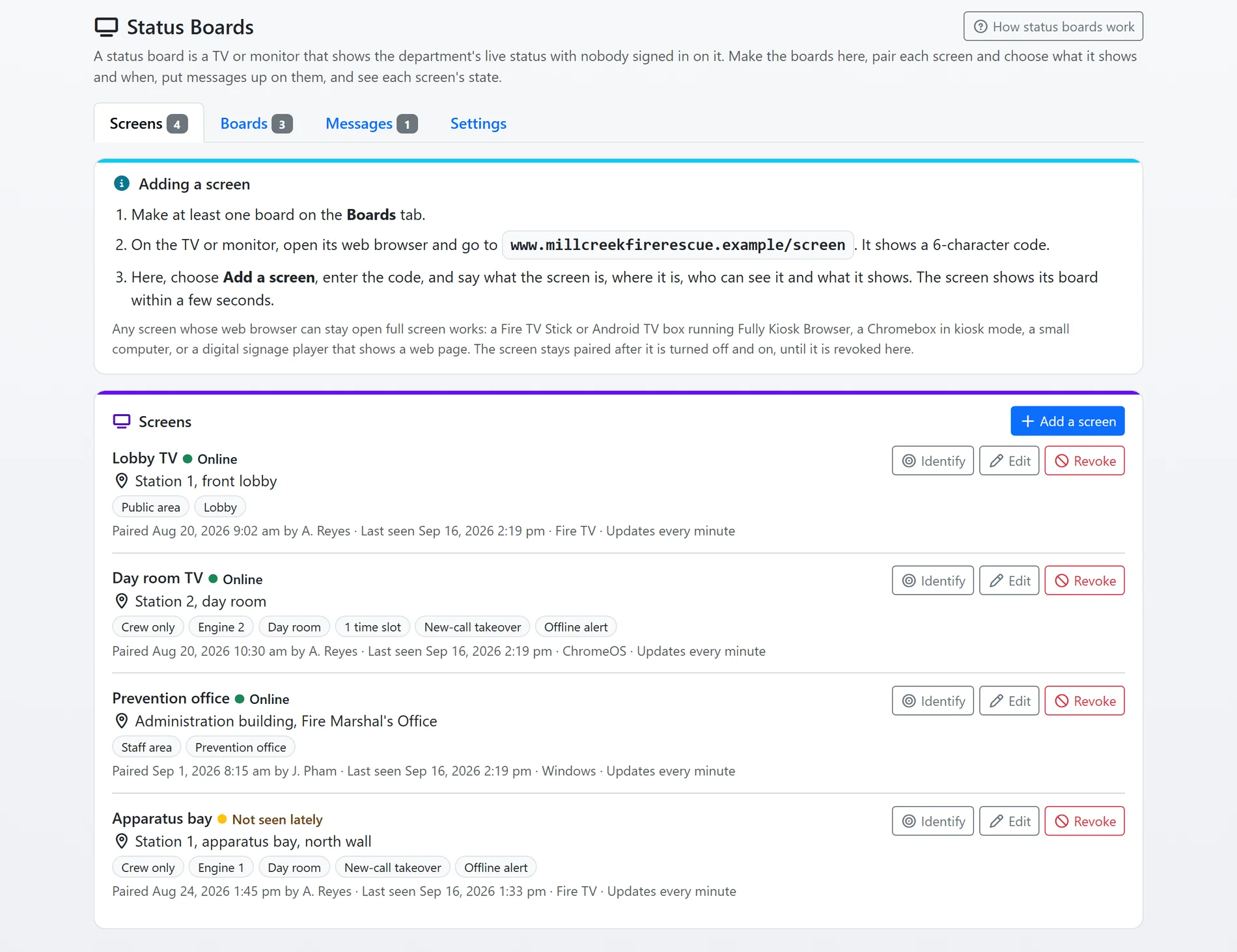
Shown with sample data.
And that is only the start
Nobody signed in
A screen holds a pairing of its own, never a person's sign-in. It can read its board and nothing else, and revoking it takes effect at its next check.
Nothing to install
A screen is a web page in the TV's own browser. There is no app to keep updated: it picks up each new release on its own.
Inspections today
For the prevention office: what is still on today's schedule, with the time, the place and the inspector.
Read from your records
Every card reads what the department already keeps in FireInspection360. Nothing is typed onto a board, so a board is never out of date.
Any shape of screen
A 16:9 TV, a 16:10 monitor or a screen hung on its side, sized from the screen itself and fitted again when it changes.
How status boards work
A guide inside FireInspection360 explains every card, audience and setting in the words the screens use.
See your department's day on a screen.
A one-hour walkthrough with a fire prevention expert, or the demo site right now.